Wednesday, December 12, 2012

Game Cube


Game Cube is an interactive cube with an[RGB]  LED on each face. Game Cube allows its users to appreciate the aesthetic qualities of light and color while implementing interaction with the cube through the rotations of the cube. Game Cube utilizes an accelerometer, as it's primary input, to change the colors of the LEDs dependent upon the position of the cube in the user’s hands, dependent upon the current setting.


Interacting with the Game Cube is fun and easy. The user can simply pick up the cube and begin by pointing any corner of the cube upward and holding in that position for 3 seconds. After you rotate the cube back to a face user will find his or herself menu interface where each face has a certain color corresponding to a different setting. To pick a setting you need only to rotate the cube such that the desired setting color is faceing upward. The user will know what face is currently selected by a blinking light on the current face that is pointing up. By holding this face in this upward position for 3 seconds, the user will enter the desired setting.


There are 6 faces and 5 settings. Two of the faces correspond to the same setting (Green).

·         Blue: LightCurrentFace—Lights the current upward face.

·         Red: RandomCube—Rotate the cube to a new upward face and watch as each face is lighted randomly

·         Green: PartyCube—Sit back and enjoy the light show

·         Cyan: ChangeCubeColor—Rotate the cube to a new upward face and watch as the entire cube lights up to the face’s corresponding color (there are 6 available colors)

·         Yellow: ChaseTheLight—Rotate the cube to the lighted face before time runs out! Hurry, you only have 5 lives!

To exit out of any setting, simply point any corner of the cube upward for 3 seconds and then rotate back to a face. This will return the user back to the Menu Interface.


Technical Details

Input
The only input to the Game Cube interactive system comes from the accelerometer attached to the inside of the Game Cube. The accelerometer works by tracking the x, y, and z positions of the cube in 3-dimensional space.

Output
The output of Game Cube are the light values that correspond to the color of each LED. The input of the accelerometer’s x, y, and z values correspond to the red, green, and blue values of each LED. Different positions of the cube for each of the settings can result in a variety of color combinations.

Construction
The components of Game Cube consist of the 6” acrylic cube, an inner cube composed of foam core to house electronics, an Arduino microcontroller to run the Game Cube program, an accelerometer to track the cube’s x, y, and z position in 3-dimensional space, a group of 6 RGB LEDs with the corresponding wires, 3 shift registers to  connect the abundance of electronics to the Arduino, and a battery to power everything.


Software
The code for Game Cube is written in the Arduino programming environment and stored on the Arduino microcontroller attached to the inside of the Game Cube. The software consists of 650 lines of code—5 different settings, a Menu Interface, shift register control, LED control, accelerometer control, and testing/debugging statements.


Thursday, November 1, 2012

Interactive Technology Observation


For my interactive technology observation I chose the Coca-Cola freestyle located in Valhalla. It is essentially a device that allows you to choose from a large variety of drink combinations all from one drink dispensor. Generally, the people I observed using the device, who had clearly used it before, became impacient at some point during the process of getting their drink when pressing the screen because the response time to the next page was not as instantaneous as they would have liked. I did end up observing one lady who had no experience with the machine and had to figure out how it worked.  She discovered how the touch screen worked fairly quickly but when she decided she was going to fill her cup with the drink of her choice she pushed her cup against the ice lever which in turn scared her half to death.  It's really not that clear as to whcih button you are supposed to press for your drink because most fountain drinks today have levers for the drink, similar to the ice lever.  Perhaps if they labeled the drink button with another word other than push this confusion would have never come about.  The one major problem I have found with the machine is it's efficiency at getting multiple consumers their drinks in a timely manner. Because you do have to go through the process of choosing what beverage you want, and the fact that there is only one source from which to get your drink, which can in turn create a rather long line.

Tuesday, October 30, 2012

Final Project Proposal

For our final project, we propose a cube with which you can play various games with (a game cube if you will) that will at the same time be very esthetically pleasing. To accomplish this we will encase our arduino inside of the cube (making sure that it is stable) and run an RGB LED to each face of the cube. The cube will be controlled by an accelerometer which will inturn control the color values for each RGB LEDs. 

 
We are still brainstorming some of the games and/or settings that will be available for the cube but so far we have:
 
Color Wheel - a setting that will allow you to create every color in the color wheel simply by rotating and moving the cube along the x, y, and z axis'.
 
Maze Game - a game in which you have to figure out the right combination of turns for the cube in order to reach the end of the "maze".
 
Simon^{3} - similar to simon but utilizing rotations to certain sides of the cube instead of pressing buttons (sound may be incorporated). Each side of the cube will also have it's own color. These six colors will be red, yellow, green, cyan, blue and magenta being that yellow, cyan, and magenta are all composed of equal values of two of the three primary colors (red, green, and blue).
 
Reflex Game - a game in which you must rotate the cube to the indicated side before time runs out, while your granted time limit between each rotation gets smaller and smaller as the game progresses.
 
Color Game - at the start of the game the cube will flash a random color and it will be your job to create an identical color to the one that was shown at the start of the game, which will inturn have some sort of response if you create the correct color.
 
(more soon to come...)


Monday, October 15, 2012

Motor Labs

In these labs we learned how transistors can be used to allow you to control a circuit that is carrying a higher current and voltage from the microcontroller and how an H-bridge can be used to switch the direction of a current that is flowing through a circuit.  An H-bridge is actually made up of several transistors aswell.  Here is a video demonstrating how the H-bridge allows for a change in dirrection of current as well as how the H-bridge acts as a transistor by allowing control of the circuit while it is carrying higher current and voltage from our power source.

 
We did have one minor issue while attempting to complete this lab.  On our first trial nothing would work.  At that point I decided I'd feel what I thought to be the H-bridge to make sure it was not heating up.  After almost burning my finger off I realized something must be wrong.  We checked the diagram, made sure everything was in the right place, switched wires away but nothing seemed to work.  At that point we realized that what we thought was a H-bridge was actually a shift register.  After a quick switch we had our circuit running.


Shift Out

In this lab we learned how shift registers work and how they can be used to control eight outputs at a time while taking up only a few pins on your micro controller.  This is done using a thing called "synchronous serial communication" which allows you to pulse one pin up and then down allowing you to communicate a data byte to the register bit by bit.  Once the whole byte is transmitted the HIGH, LOW messages located in each bit are then transmitted to its corresponding output pin.  Here is a diagram of the shift register we used for the lab:
 
PINS 1-7, 15 Q0 " Q7 Output Pins
PIN 8 GND Ground, Vss
PIN 9 Q7" Serial Out
PIN 10 MR Master Reclear, active low
PIN 11 SH_CP Shift register clock pin
PIN 12 ST_CP Storage register clock pin (latch pin)
PIN 13 OE Output enable, active low
PIN 14 DS Serial data input
PIN 16 Vcc Positive supply voltage
 
Our overall goal for this lab was to control a seven segment LED counter using .  We had a few problems while trying to figure out what pins controlled what on the counter but after we discovered that it was a common anode counter it was smooth from then on.  We were able to control the counter by using only 3 pins in our arduino.
 

Monday, October 8, 2012

Ninji Chop - Accelerometer controlled fruit slicer

For this project we were asked to design and prototype an object for the kitchen area so naturally we came up with the idea of a 'virtual' fruit slicer that we like to refer to as ninji chop.  My partner and I had done some experimenting with an accelerometer after lab one day and we thought it was pretty cool so we decided that we wanted to implement this into our project in some shape or form.  All of our first ideas incorporated the accelerometer in such a way as to cause some type of pouring action for perhaps a pitcher or a measuring cup.  This idea flopped after we realized that liquids handled in the kitched are generally too heavy for the type of devices we have access to in the lab and it just didn't seem very innovative.  After wrestling around with several other ideas that were simply preposterous we came up with the accelerometer controlled knife.
 
Here is a video of our first test to see if a servo could exert enough force to cut a banana.
 

Check.
 
After some brain storming we realized that our design process would circulate around the knife being controlled by our acceleromter, so clearly the next step was to get the thing chopping!  After mapping the values of the y-axis inputed from our accelerometer to the values outputed by the servo connected to the knife we came up with the following.


Notice the "glove of power".

The idea of a 'virtual' fruit chopper in which every physical action exerted by the device could be controlled from a glove raised one design question after another when we realized that there were more factors at play here other than a simple chopping motion.  We of course wanted to make it as interactive as possible.  As you can see in this next video we mounted our knife/servo to our main platform in order to keep it stable, as to apply the maximum amount of force on the food item being sliced, but we needed a way to pull the food along to create uniform cuts.

 
You would not believe the number of systems we thought of to pull our little cutting board along.  From linear actuators to complex systems of gears we knew there had to be a perfect design out there that could fulfill our needs. We finally realized the elegance of simplicity when we setteled on a dual spindle/pulley system that would give the operator ultimate control over the cutting board, anywhere from thinly sliced to chunky.  In order to mount the servos that would control the spindels we had to raise the main platform that the cutting board would slide on.  This was done using blocks of wood.  The peice of wood you can see mounted to the knife servo was placed there for added support.
 
 
We then mounted two buttons to our "glove of power" in order to control what directions the the spindels would pull.  We had to run through trial and error in order to figure out what values would cause the servos to spin in certain directions at certain speeds.  We then fixed a block of wood with a hole drilled through the middle to each end of the cutting board.  Next we hot glued some string from each spindle to it's corresponding block.  Here is a video of the first demonstration of one of our spindels in action.
 

We then had to coordinate each spindel such that they would spin in the same direction when a button was pressed (depending on which button was pressed) such that one would pull the cutting board along while the other would release it's line.  We ran into a minor problem in our code while sorting this out when we could only get it to pull one way.  We actually created an if statement for each button when instead we simply needed to apply both buttons to one if statement.  In doing so our program no longer skipped checking to see if the second button was pressed.  Our cutting board also ended up in several "truck pulls" before we got the rotations figured out as well.
 
Another element we needed to think of was a way to keep the slices of fruit from falling off of the cutting  board.  This problem was solved by fixing two "walls" on both sides of the path that the cutting board would take, helping to contain the fruit and to funnel the cutting board at the same time.    


Next we needed a way to stop our spindels if they were to reach the end of the platform. This was done by placing a switch at both ends of the platform.  When one switch is pressed our program skips the part of the if statement that checks to see if the button that would pull the cutting board toward the currently pressed switch and simply checks to see if the other button is pressed, and this will of course loop until the other button is pressed.
 

After we got both servos that control the spindels functioning we experienced a problem with our servo controlling our knife, that being it became nonresponsive.  After some research we discovered that the arduino power source is simply not enough when it comes to powering multiple servos. We then found an external power source as you can see below.

 
We did however experience the persisting problem of our knife randomly locking up, usually happening whenever you hold the glove (with the accelerometer attatched of course) still for a few moments.  The knife would become responsive again from a simple tap but it is simply annoying.  If you have any comments on the matter feel free to indulge us on what it is that you think the problem may be.
 
Last but not least here is a video of our final project.  Our final design implemented a blade gaurd as to stop any slices of fruit from getting stuck to the blade.  We think it turned out pretty well.


Wednesday, October 3, 2012

Analog Output Lab

In this lab we learned how to utilize Pulse Width Modulation or PWM even more in order to demonstrate analog output. PWM can allow digital devices to produce analog output by simply turning the digital device on and off very quickly. The pulses of "on" time that are part of each period of PWM are referred to as duty cycles.


During the first part of lab we constructed the following circuit in which to control a motor from a potentiometer.  We wrote a program in which we could manipulate the duty cycle of the motor by twisting the potentiometer. We also incorporated an LED in which is manipulated in the same manner as the motor.
 

Next we uploaded some started code provided to us in order to become more familiar with servos.
This one being a 360 degree servo:

 
And this one being a 180 degree servo:
 
 
Next we added a potentiometer to our circuit and mapped the analog input values of the potentiometer to the analog output values of the 180 degree servo.
 
 
In the final portion of lab we got to play with a small piezo speaker.
 
 
My partner being gifted in the art of music making looked up the frequencies for certain notes online in order to demonstrate another melody.


Analog Input Lab

In this lab we performed a number of experiments using our Arduino and analog input.  Analog input values differ from digital input values in the sense that analog values can be numbers other than 0 and 1.  The Arduino has 6 pins that can be used for analog input. These inputs take a voltage of 0 to 5 volts and converts it to a value between 0 and 1023.  These converted values can then be used as variables within a program which creates an almost limitless number of possibilities that they can be applied to. We got to play with devices that can be used to input these values into our Arduino.  The first device we got to use was a potentiometer which changes the amount of resistance on the voltage value that it outputs by twisting it left or right.  After setting up the following circuit we used code provided to us during the lab to implement the following: 
 
 
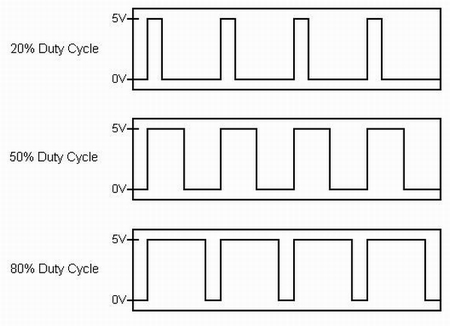
As you could see in the previous video our code implemented pulse width modulation (PWM) by using the analog values inputed by the the potentiometer to determine the delay between when the light turned on and off.  Here's an example of how pulse width modulation looks on paper, the duty cycle referred to describes a portion of "on" time as opposed to the period which consists of one whole interval of both on and off time:


As you can see in this next video, the pulse width modulation is no longer noticeable in the sense that you can't physically see the LED turning on and off.  It simply appears to be dimming but it is in fact implimenting the use of PWM by making the interval between "on" and "off" small enough to where your eye can no longer see the individual on/off stages.


In the next part of lab we began a series of experiments having to do with environmentally controlled analog input devices, the first of which being a photo resistor.  Using the code provided we constructed the following using the same circuit from the potentiometer experiment, but with a photo resistor instead of a potentiometer of course:
 
 
As you can see in the video above, the photo resistor inputs votage to the Arduino depending on the amount of light it registers.  After completing this circuit we decided we'd make a "night-light".  We modified our code so that once the sensor reached a certain value the LED would remain on as long as the sensor value remained equal to or greater than that certain value as you can see in this video.
 
 
Our next task was to set up a temperature sensor.  Using some code that was provided to us and some pretty complicated math in order to convert the input values from the sensor into values of Fahrenheit we demonstrated our temperature sensor by inserting it into a cup of hot water.  The Arduino serial monitor displays the temperature values in real time.
 
 
Next we went about setting up a pressure sensor that would light up an LED depending on the amount of pressure applied to the sensor.  This is the same concept as the previous experiments but simply using the amount of force applied the sensor to determine the amount of resistance applied to the amount of voltage the sensor outputs, thus creating different analog values that the Arduino can read.


Next we set up a circuit that incorporated a flex sensor.  The only difference between this an the pressure sensor was that it inputs values depending on the amount of flex on the device.

 
Problematic Occurences
We did run into a few problems with our temperature sensor set up.  The wires were not color coded and we thought we had a working circuit for a minute but our sensor started to heat up rapidly and we realized we had wired something wrong.  We quickly fixed this problem. All in all this was our least problematic lab yet!

 
After Lab Fun
 
 After the lab was finished we decided we'd play around another analog input device called an accelerometer.  An accelerometer inputs three different values depending on what direction it is facing on the x-axis, y-axis, and z-axis, with the z-axis pointing straight up and down.  We decided to map the values being inputed from the y-axis to the intensity values of an LED.  It worked brilliantly.  Click on the link below to see the video of our accelerometer/LED and tell us what you think.


I did end up thinking of another possible idea for another day in the lab.  I was thinking of perhaps mapping the 3 analog values inputed from the an accelerometer to the values of a RGBLED (red, green, blue).  In theory by doing so you should be able to get the RGB to produce every possible color combination there is by simply rotating and moving the accelerometer along the three axis'. Just some food for thought.


Tuesday, September 18, 2012

Freekout! The game that's sweeping the nation!

 
For this project we were asked to design and implement something that demonstrates both digital input and output to realize some kind of creative physical interaction.  In this case our input was our two buttons.  This game is like a version of pong with a twist to it.  The lights will start by turning on and off, appearing to give either a clockwise or counterclockwise motion.  The first person the light reaches has to press their button during the time that the LED, located in front of their button, is lit.  In doing so the light will reverse it's motion and reverse toward the other player.  Although if you were to miss time your button press the light would not reverse in direction and you would know that you mistimed your button press.  Every time there is a successful "bounce-back" the incrament of time between each light turning on and off gets smaller, giving the appearance of a faster moving light.  After a player misses 5 times the other player is deemed the victor and the LED's on his side of the game board light up. 

Here's a few pictures of the initial process of the initial process of handywork/presoldering to give us a better idea of how our game was going to funcion.


After attempting to get the thing wired to the breadboard we did run into to  the little problem of not know which side of the pins that we soldered from our wires to our LEDs was positive and which side was ground.  This was solved by plugging the pins directly into our arduino to figure out which pin was which.  In doing so we marked every wire running to ground on the LED with a sharpie.  The image on the right is the product of a piece of code that lets you know who the official victor was.
 
 
Here's the beginnings of our foamcore frame that will encase the innerworkings of our game (breadboard, wires, and arduino).
 

Here's a video of us running a loop in our program after we discovered how to get each light to blink in concession clockwise.


The video below is of the final product of our programming.  It still had a few minor flaws at this point and we were going to make it even more aesthetically pleasing and exciting but after this video was taken we accidentally shutdown the desktop computer we were working on and deleted all of our code.  We did try to rewrite rewrite the program from the original code, but we thought it would be best not to try and upload it seeing as how our game functioned well enough for presentation with the original program still uploaded to it.
 
 
This is a video of the final product, frame and all.  We found that Freekout was a proper name for the game because it always seems to start off rather slowly but gains alot of momentum towards the end of the game causing you to "freekout" at the very end.
 

"Psycopathology of Everyday Things"

  • Well designed fabricated objects should be easy to interpret and easy to use and it is suprising how many items there are out there today that have neither of these aspects.
  • The correct parts must be visible and they must convey the correct message.
  • The fact that I did not realize that I could switch to the next page using the right arrow key, because the down arrow key would not do so, until just now. (just throwing that out there)
  • If people keep buying poorly designed products, manufacturers and designers will think they are doing the right thing.
  • A good conceptual model allows us to predict the effects of our actions.
  • When the number of possible action exceeds the number of controls, there is apt to be difficulty.
  • Mappings follow from the principles of perception and allow for the natural grouping or patterning of controls and feedback.
  • Feedback is a well known concept in the science of control and information theory.

Monday, September 17, 2012

Digital (i/o) lab

This week we got to play with our breadboards a little more, aswell as take a look at some basic sample code to help us get a better understanding of input, output, and the inner workings of our arduino.  Our first step was wire up a simple LED and to upload our sample code to our arduino to get a better physical understanding of how the code loops through, making our LED blink on and off every second.  Our next step was to properly wire in seven more LED's, using seperate pins from our arduino for each LED as to control each LED in a certain way, as you can see from the video below.  I thought it was very interesting how the code was set up to run certain loops for only certain amounts of time using for(int i=0, i < 8; i++) which would cause the loop to repeat eight times.

 
Our next step was to set up a small motor we were provided with.  This required the use of a transistor in order to provide enough current for our motor.  We did experience several problems when trying to provide power for our motor. We added a small breadboard on the right hand side of our original breadboard on the first day of lab and it turns out that not all of the vertical sections of the added breadboard are connected to one another.  We simply had to make sure that our pins were all plugged into the same section of the breadboard.
 
 
The next part of our lab was to wire up another LED, but one that could be turned on and off via pushbutton.  This section of lab allowed us to focus more on how inputs worked instead of just outputs.  We learned more about how the arduino detects for the voltage of a pin to sense whether  a button is pressed or not.  For example, in this picture the arduino detects the pin to be LOW.


And in this picture it is detected to be HIGH.


Tuesday, September 11, 2012

Imaginary-Expressive-Object


This week we were asked to come up with an imaginary expressive object so I came up with:
 
THE FEEDBACK DISC
Enhance your game so you can start rattling those chains.
 
It is an electronic disc golf disc that will give you feed back in all of the key areas that can be improved to enhance your disc golf game to the fullest.  The Feedback Disc comes complete with four screens, equally seperated as to not upset the balance of the disc, that give you instant feedback in four key areas; Rotations Per Minute, launch angle, distance traveled, and hangtime.  The feedback disc employs four sensors/buttons that test to see whether the disc is in contact with your hand or not.  After pressing and holding a button for a few seconds it senses that your are ready to throw and once the disc is released from your hand it begins compiling data on it's flight until it detects any type of contact (hopefully not the tree right next to you).  It also uses a tiny accelerometer to test for the initial launch angle.
 After a tough day out on the course take your disc home and plug it into your computer, via usb, for even more FEEDBACK!  The disc comes complete with a program that can produce a 3D rendering of each and every drive you through from the day as well as a rendering of all of your drives averaged together.  The ultimate tool in knowing exactly how your disc will fly in the future.

Monday, September 10, 2012

Lab 2: Basic Electronics

 
In lab 2 we got to become a little more familiar with breadboards, multimeters, and other various components associated with breadboards. The first step of the lab was to simply make sure that our wonderful instructors set us up with all of the parts we needed for the lab. The next step was to make sure that our multimeter was working properly by touching the two probes together to test for continuity.
 
 
We decided to try out the arduino 5V power supply this time instead of the power jack we constructed in the last lab just so we could become more familiar with how the arduino worked (because we're guessing we might end up using it later on).  We used our multimeter to test various things including the small switch that we were provided.  We also used our multimeter on different resistors that we were provided.  We learned how to set up the multimeter when trying to detect for a particular resistance (in ohms) by setting it to the same range of resistance we wanted but slightly higher.  We then installed a 5V voltage regulator to keep the voltage constant.
 

Next we installed an LED and the switch.  This was our first trial in which we discovered that our button was not installed correctly as you can see the light is on when the button is not pressed and it turned off once the button was pressed.  This could have been fixed by rotating our switch either clockwise or counter-clockwise.

 
Lastly we changed out the button switch for the potentiometer you see below.  Using three alligator clips we were able to connect the potentiometer to some pins eliminating the need for solder.  The only issue we had was that turning the potentiometer only half of a rotation cut the LED completely off.


Tuesday, September 4, 2012

Sensor-Walk


 Both of these sensors detect movement, the black one controls the lock on the door while the white one controls the lights, turning them on if it detects movement or turning them off if it doesn't detect movement for an extended period of time.

This sensor is a little different. It has an on/off switch that is easily accessible to anyone in the room but if it is turned on and it goes a certain period of time without sensing any movement in the room it will conserve energy and shut the lights off anyway.


This thing is pretty nifty.  The sensor detects if there is anything under the water dispensor and if so it turns the water on allowing to fill your bottle.
 

Thursday, August 30, 2012

Day 1 - Soldering

Today we soldered two wires from a female power plug to some header pins as well as two more wires from a male power jack to a battery snap. The basic point of the lab was to simply make sure our solder job was good enough to where we could run a constant current through our wires.  We learned the concept of pre-soldering and why it will save you time and hassle while soldering.  We did experience problems with our solder not wanting to melt when we touched the tip of the soldering iron to it but that was simply because we had not tinned the tip of the brand new soldering iron yet.  Tinning the tip of your new soldering iron allows for a better transfer of heat from the tip to your solder so lesson learned - always tin the tip of your new soldering iron before you try anything else.